

Mobile Barcode Inventory Counting App
A practical solution to speed up inventory and reduce discrepancies
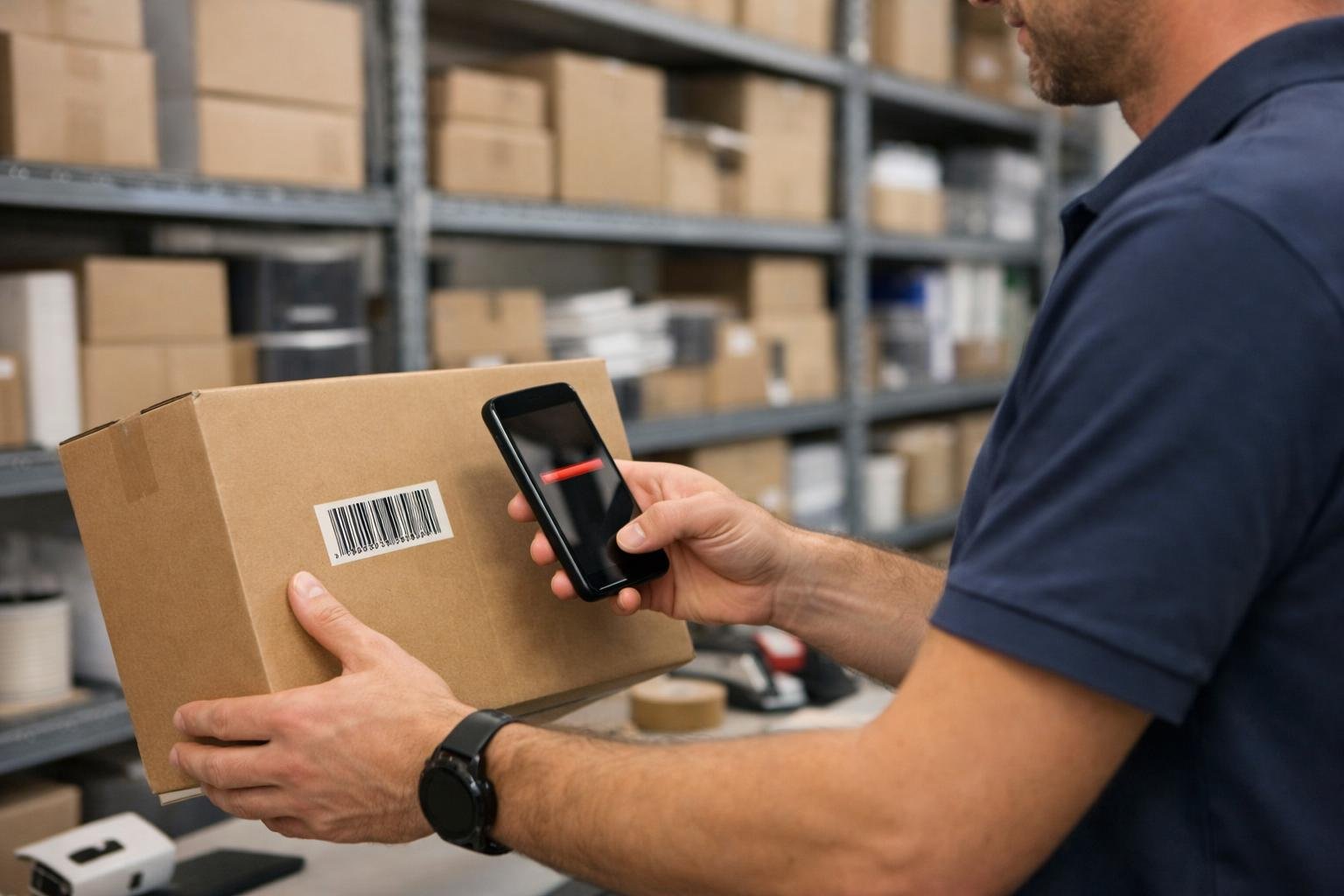
In many companies, the problem with inventory is not just a lack of staff, but the counting method itself: scattered papers, manual data entry later, errors in reading codes, and discrepancies that appear after closing the day. This is where the value of a mobile barcode inventory counting app comes in; it turns your phone camera into a fast counting tool, helping the team record quantities directly from the shelf, then match results with the accounting or inventory management system. At SFA Saudi Trading, we see this type of solution as a practical part of operational transformation, especially for stores, warehouses, distribution companies, and sales offices that need faster inventory and more accurate decisions.
Why do companies need a mobile inventory app?
Traditional inventory might work in a small business, but it becomes exhausting with multiple branches, different packing units, and many similar items. When relying on paper, the employee reads the item number or name, writes the quantity, and then the data is re-entered into the system. Each of these steps opens the door to errors: inverted numbers, missing quantities, similar items, or papers not submitted on time.
When using an app based on barcodes, the employee scans the item code with the phone camera, and the item name, unit of measure, and expected location appear if the data is available. Then, they enter the quantity or select the appropriate unit, like piece or carton. The result is that counting happens closer to the goods, relies less on memory, and is easier to review.
How does the barcode inventory app work?
The app is simple to use but powerful operationally. The employee opens the inventory task on their phone, selects the branch, warehouse, or area, then starts scanning the barcode on the product, shelf, or carton. After each scan, they record the actual quantity and can move to the next item without returning to an office or computer.
In a practical scenario, a company may have a warehouse of toners, consumables, printers, and accessories. During inventory, the employee scans the barcode of a toner carton, and the linked item appears. If the unit is a carton, they record the number of cartons. If there are loose pieces outside the carton, they record them as pieces. These details matter because discrepancies often come not just from counting, but from mixing up packing and sales units.
Inventory with your phone camera—no complex devices needed
One of the main advantages of this solution is that you don’t always need a separate barcode reader. The phone camera is enough for many daily operations, especially for periodic inventory, small branches, or shelf reviews. This reduces the need to equip every employee with a dedicated device and makes training faster since most users are comfortable with smartphones.
However, attention must be paid to label quality, lighting, and barcode cleanliness. If the code is smudged or printed poorly, scanning attempts will increase. So, it’s best to have clear item labels, organized storage, and a consistent method for scanning codes and recording quantities.

Managing discrepancies and recounts intelligently
Discrepancies are not always a sign of actual shortage or surplus; sometimes they’re due to counting errors, wrong unit selection, or an item being in another location. So, it’s not enough for the app to show the difference between the system and reality—it should help manage a clear review cycle.
The practical approach is to divide inventory into stages. In the first stage, the team records actual quantities. Then, the app displays only items with discrepancies, instead of recounting the whole warehouse. These items are then sent to another employee or supervisor for recount. If the same result repeats, the difference can be approved or escalated for administrative review, depending on company policy.
Operational example of recounting
Suppose the system shows a certain quantity of a frequently used item, but the actual count is less. Before approving the difference, the supervisor reviews recent transactions: unposted sales, internal transfers between branches, or goods in the receiving area not yet moved to their location. Then, a recount is requested for the same item in two locations: the main shelf and the returns area. This targeted process is better than a full recount and helps uncover the reason for the discrepancy instead of just recording it.
Packing units: piece and carton without confusion
One of the most common causes of inventory errors is mixing up packing units. An item may be purchased by the carton, sold by the piece, and sometimes stored as half a carton or open quantities. The inventory app must support multiple units, clearly showing which unit the employee is recording.
When designing the workflow, it’s important to define the base unit in the accounting or inventory system. If the base unit is a piece, the app can allow carton entry if the conversion relationship is pre-defined in the system. If not, automatic conversion should be avoided to prevent unexplained discrepancies.
- Piece: Suitable for direct sales or detailed counting of open items.
- Carton: Suitable for quick warehouse counts when cartons are sealed and clear.
- Unit review: Necessary when there is a large gap between system and actual quantity.
- Conversion permissions: It’s best to restrict conversion adjustments to authorized users.
Working in low-connectivity locations
Not all warehouses have ideal network coverage. Some back storage areas, basements, or temporary sites may suffer from weak connectivity. The inventory app should work offline, saving operations temporarily on the device and syncing when the network returns.
The key point is not just working offline, but preventing data conflicts. The app should show the user the sync status: what’s uploaded, what’s still on the phone, and if any operations failed and need resending. It’s also best to split inventory tasks by area or user so two teams don’t count the same location and upload conflicting data.
Checklist before inventory in low-connectivity environments
- Download the item and location list before starting.
- Ensure users are logged in and permissions are set in advance.
- Clearly divide inventory areas among teams.
- Review the sync screen before approving final results.
- Don’t delete any inventory task before confirming it’s fully uploaded.
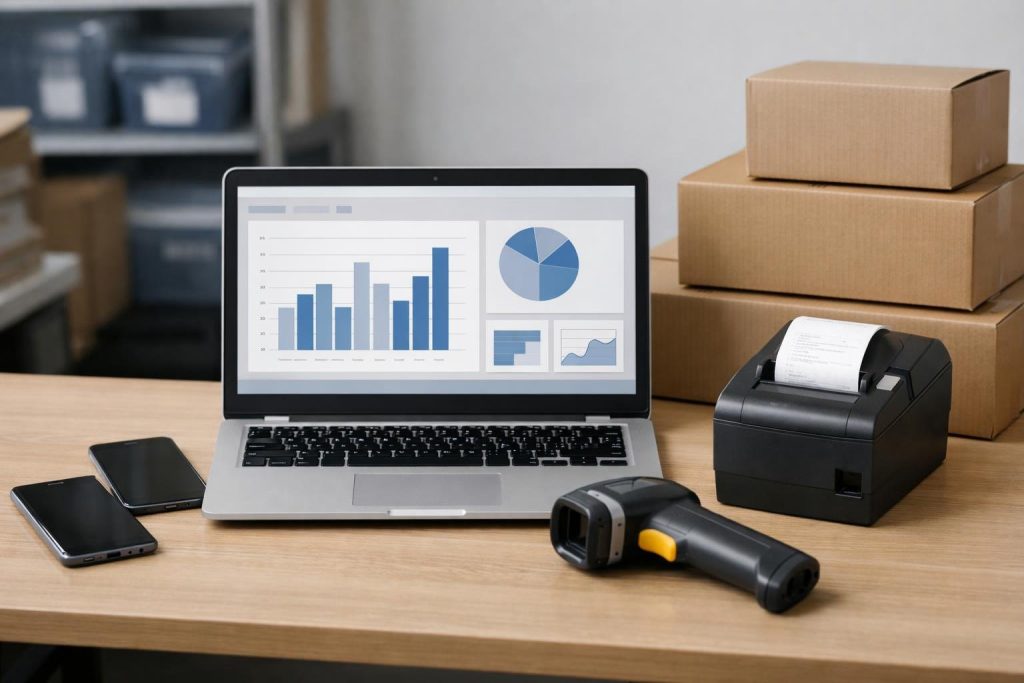
Integration with accounting and POS software reduces manual entry and makes discrepancy review easier. Integrating the app with accounting and business management systems
The true value of the inventory app appears when it’s integrated with the company’s main system, instead of exporting and re-importing files every time. Integration reduces duplication, helps management see results quickly, and enables the accounts or inventory team to review discrepancies and approve adjustments within a clear workflow.
In principle, the inventory app can be integrated with systems like Dynamics 365, Odoo, and SAP Business One, provided you review how items, warehouses, units, and permissions are managed in the current system. Successful integration is not just about knowing the software name; differences come from settings, used add-ons, item numbering, and posting policies.
What should be reviewed before integration?
- Item catalog: Is the barcode unified? Are there multiple barcodes for the same item?
- Warehouses and locations: Is inventory done by branch only, or by shelf and storage location?
- Units: Are conversion relationships between piece and carton accurately defined?
- Permissions: Who can count, who reviews, and who approves discrepancies?
- Posting: Are entries or inventory movements created directly or after administrative approval?
In Dynamics 365 environments, the workflow may be tied to warehouses, locations, and approval policies. In Odoo, the experience may differ based on installed apps and inventory settings. SAP Business One usually requires attention to how items, warehouses, and units of measure are defined. It’s recommended to run a limited test on a group of items before full integration.
Running POS on a backup device when needed
For stores and branches, it’s important that sales don’t stop if the main POS device fails or needs maintenance. With a flexible system, you can run POS on a backup device after verifying permissions and required settings, like the receipt printer, cash drawer, and barcode reader if available.
This doesn’t mean ignoring security controls. Running a backup device should use authorized accounts and a clear mechanism to prevent duplicate invoices or lost transactions if the network is weak. Also, make sure sales operations are synced with inventory so discrepancies don’t appear during counting. Inventory and sales are linked: any unposted sale may show as a stock shortage, and any unrecorded return may show as a surplus.
Best practices for successful inventory app use
Inventory app success doesn’t depend on the software alone, but on how it’s implemented in the company. Before inventory, clean up item data as much as possible, especially duplicates or items without valid barcodes. Train the team on real scenarios: items without labels, open cartons, damaged quantities, or items in unexpected locations.
- Start with a test in one warehouse or branch before rolling out.
- Use clear names for locations and areas.
- Don’t allow item data edits from the counting screen except when needed and with specific permissions.
- Make recounts mandatory for large discrepancies or sensitive items.
- Review sync reports before approving inventory results.
- Document the reason for adjustment, not just the quantity, to ease later review.
When do you need a custom implementation?
A ready-made app may be enough for simple operations, but some companies need more customization or deeper integration. This is the case with multiple branches, approval permissions, varied packing units, or a need for direct integration with an existing accounting system. The company may also need special screens for fast counting, discrepancy reports by employee, location, and item, or support for operation in low-connectivity sites.
In these cases, don’t start development right away. The right start is a short workshop to understand the inventory cycle: how items enter, how they’re sold, how transfers happen, who approves adjustments. Then, define an initial implementation scope and run a live test on real data before full launch.
Frequently Asked Questions
Can I use my phone camera instead of a barcode reader?
Yes, in many inventory scenarios, you can use your phone camera to scan barcodes, especially if labels are clear and lighting is good. Dedicated readers may be better in high-density or continuous-use environments.
How do we handle discrepancies after inventory ends?
It’s best not to approve discrepancies immediately. First, display items with differences, then recount important items or those with large discrepancies, and finally review possible reasons like unposted sales, transfers, or packing unit differences.
Does the app support offline operation?
The app can be designed to save counts temporarily on the phone and sync them when back online. It’s important to have a clear sync status screen and alert users to any unsynced operations.
Can it integrate with Dynamics 365, Odoo, and SAP Business One?
Integration with these systems can be considered, but success depends on each company’s settings: items, warehouses, units, permissions, and adjustment approval processes. It’s best to run a limited test before full rollout.
Can the app help run POS on a backup device?
This scenario can be supported in a controlled environment, so the backup device works with proper permissions and invoices and inventory movements are synced without duplication or data loss.
Conclusion
The mobile barcode inventory counting app is not just a faster way to count, but a tool to control the entire inventory cycle: scanning with your phone camera, recording quantities by piece or carton, identifying discrepancies, recounting, working in low-connectivity locations, and integrating with accounting systems like Dynamics 365, Odoo, and SAP Business One. The more accurate your item, unit, and location data, the clearer and more reliable your inventory results.
If your company is looking for a practical way to reduce inventory errors and speed up reconciliation with your accounting system, you can request an online demo from the SFA Saudi Trading team. We’ll review your operational scenarios and show how the app can work in your environment, from warehouse to POS, with clear and actionable steps.
Want to see this on your own system? Read about our Mobile app development service or book an online demo with the SFA Saudi team.
- Warehouses and locations: Is inventory done by branch only, or by shelf and storage location?
- Item catalog: Is the barcode unified? Are there multiple barcodes for the same item?
- Carton: Suitable for quick warehouse counts when cartons are sealed and clear.